O usuário deve ter realizado a criação do seu cadastro como aprensetado no manual Agenda 002 por meio do link: [ ](https://ajuda.ct.ufpb.br/attachments/238)[https://ajuda.ct.ufpb.br/books/procedimentos-para-agendamento-de-ambientes-do-ct/page/agenda-002-cadastrar-usuario](https://ajuda.ct.ufpb.br/attachments/238)
1\. O usuário deve acessar o sistema AgendaCT por meio do link: [https://agenda.ct.ufpb.br/](https://agenda.ct.ufpb.br/). 2\. Na página inicial, clique em "Entrar". [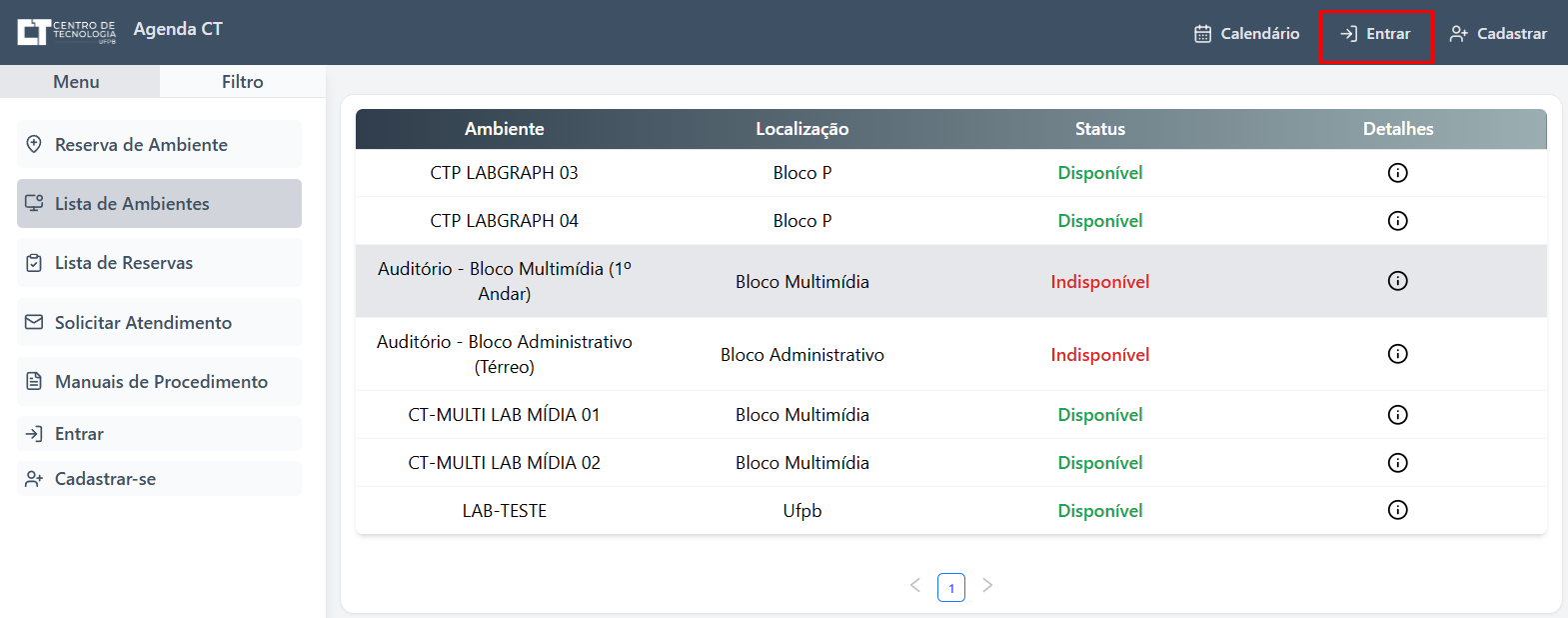](https://ajuda.ct.ufpb.br/uploads/images/gallery/2025-08/i2MnQjO1OPq9kf6H-image.png) 3\. Informe seu e-mail e senha cadastrados e clique novamente em "Entrar". [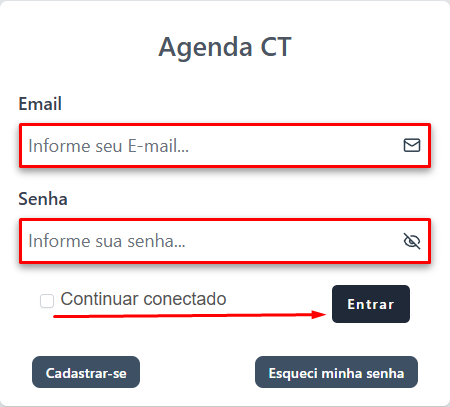](https://ajuda.ct.ufpb.br/uploads/images/gallery/2025-08/Bk4gpcQEXwlOAT8e-image.png) 4\. Caso tenha esquecido a senha, clique em "Esqueci minha senha". Um e-mail será enviado com um link para redefinição. [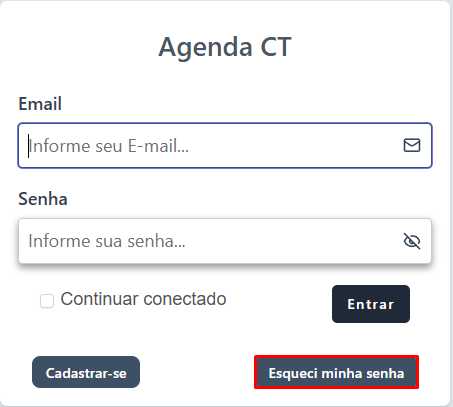](https://ajuda.ct.ufpb.br/uploads/images/gallery/2025-08/cwqCDPU941kOWRKB-image.png) 5.Retorne ao menu principal e selecione a opção "Reserva de Ambiente". [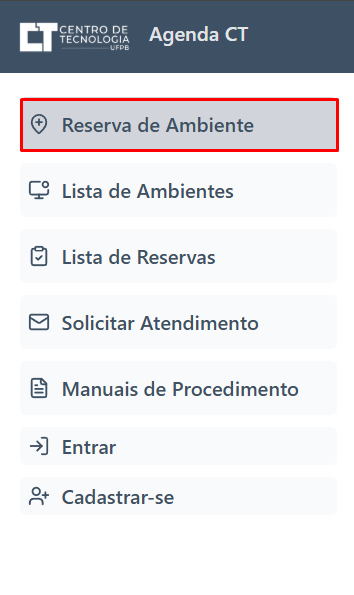](https://ajuda.ct.ufpb.br/uploads/images/gallery/2025-08/rA3xwWL9UF44mNqL-image.png) 6\. Na aba "1. Consultar Dados", preencha as seguintes informações: - Tipo de Ambiente: selecione Sala, Laboratório ou Auditório. - Ambientes Disponíveis: escolha o ambiente desejado. - Dia: informe a data pretendida. [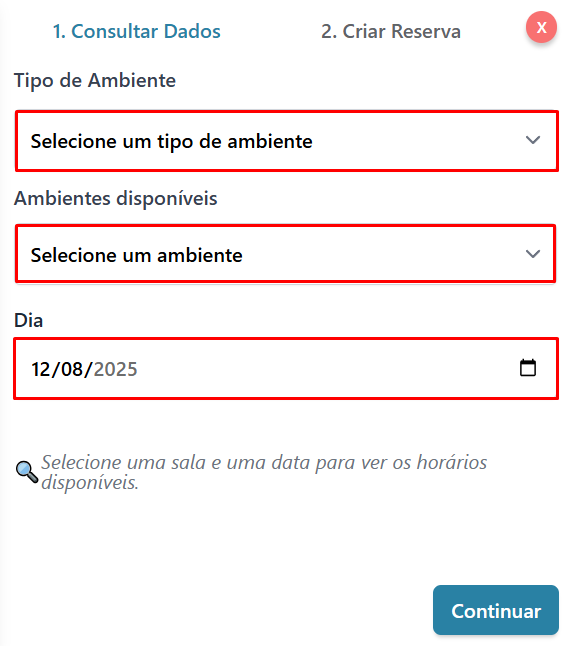](https://ajuda.ct.ufpb.br/uploads/images/gallery/2025-08/7tk1RCQypFBo7lVA-image.png) 7\. O sistema exibirá automaticamente os horários disponíveis para realizar a reserva, o usuário deve selecionar o horário que ele preferi e clicar em "Continuar". [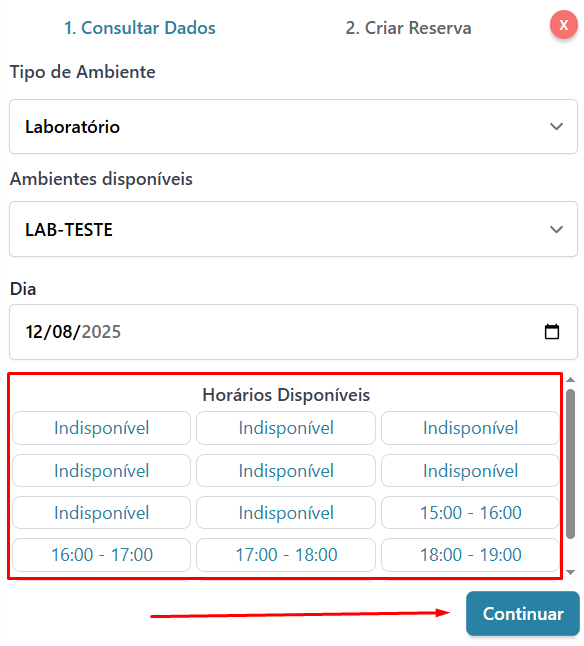](https://ajuda.ct.ufpb.br/uploads/images/gallery/2025-08/PLmVBummfDpslssg-image.png)Nesta etapa, é possível selecionar apenas um único horário disponível.
8\. Na aba "2. Criar Reserva", informe: - Tipo de Ambiente (Sala, Laboratório ou Auditório). - Motivo da reserva (selecione uma opção disponível). - Título da Reserva (breve descrição do objetivo). - Data e horário início e fim que gostaria de utilizar. [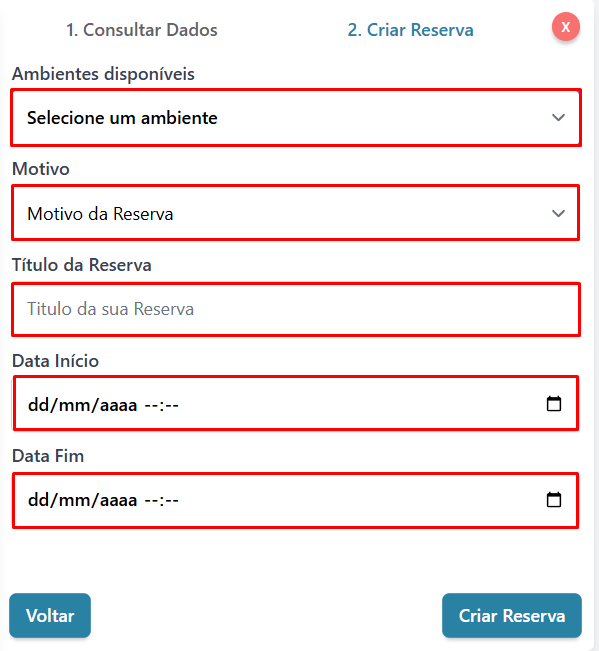](https://ajuda.ct.ufpb.br/uploads/images/gallery/2025-08/c4KAjqmYkuAd3YPG-image.png)É permitido reservar períodos superiores a 1 hora, desde que os horários estejam consecutivos e disponíveis.
9\. Confirme a solicitação clicando em "Criar Reserva". [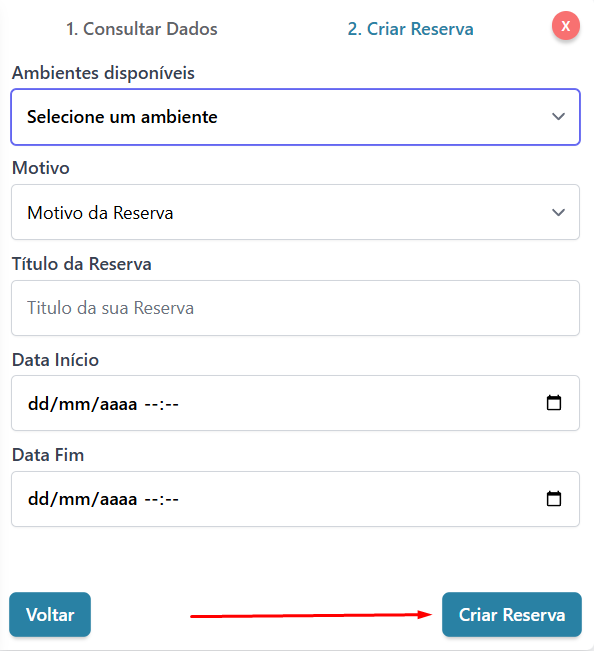](https://ajuda.ct.ufpb.br/uploads/images/gallery/2025-08/8ZIXTgEJaI8h5VpW-image.png) 10\. Um e-mail será enviado com a confirmação da solicitação de reserva. 11\. Fim do processo.Acompanhe as atualizações da sua reserva acessando o login no AgendaCT, pois notificações de confirmação ou sugestões de alteração não são enviadas por e-mail — elas ficam visíveis apenas na página do usuário.
##### **IV. Expediente**| **Elaborado por:** | Maria Thaysa Medeiros |
| **Data de Elaboração:** | 11/08/2025 |
| **Data da Revisão:** | |
| **Código do procedimento:** | Agenda 003 |
| **Número da revisão:** | 0 |
| **Setor:** | Direção de Centro |
| **Responsável:** | Marcel Gois |
| **Horário de funcionamento:** | 8h30min às 17h30min |
| **Contato:** | [https://atendimento.ct.ufpb.br/index.php?category=52&a=add](https://atendimento.ct.ufpb.br/index.php?category=52&a=add) |
| **Telefone:** | (83) *3216-7378* |